How to blur sensitive information in Chrome
Before a product demo or video call, decide which parts of the browser page your audience needs to see. Veil can visually mask structured sensitive text and selected page regions while leaving the rest of your demo visible.
1. Install and enable Veil
Download the Veil developer ZIP, extract it, then open chrome://extensions. Enable Developer mode, choose Load unpacked, and select the folder containing manifest.json. Open an ordinary website and enable Master Protection in the popup.
2. Choose automatic detection or a manual blur
Enable the sensitivity categories you need for structured text such as emails or API keys. If a value is missed, use the floating toolbar to select text, pick an element, or draw an area over the content. Area blur is useful for a panel or image that automatic text detection cannot cover.
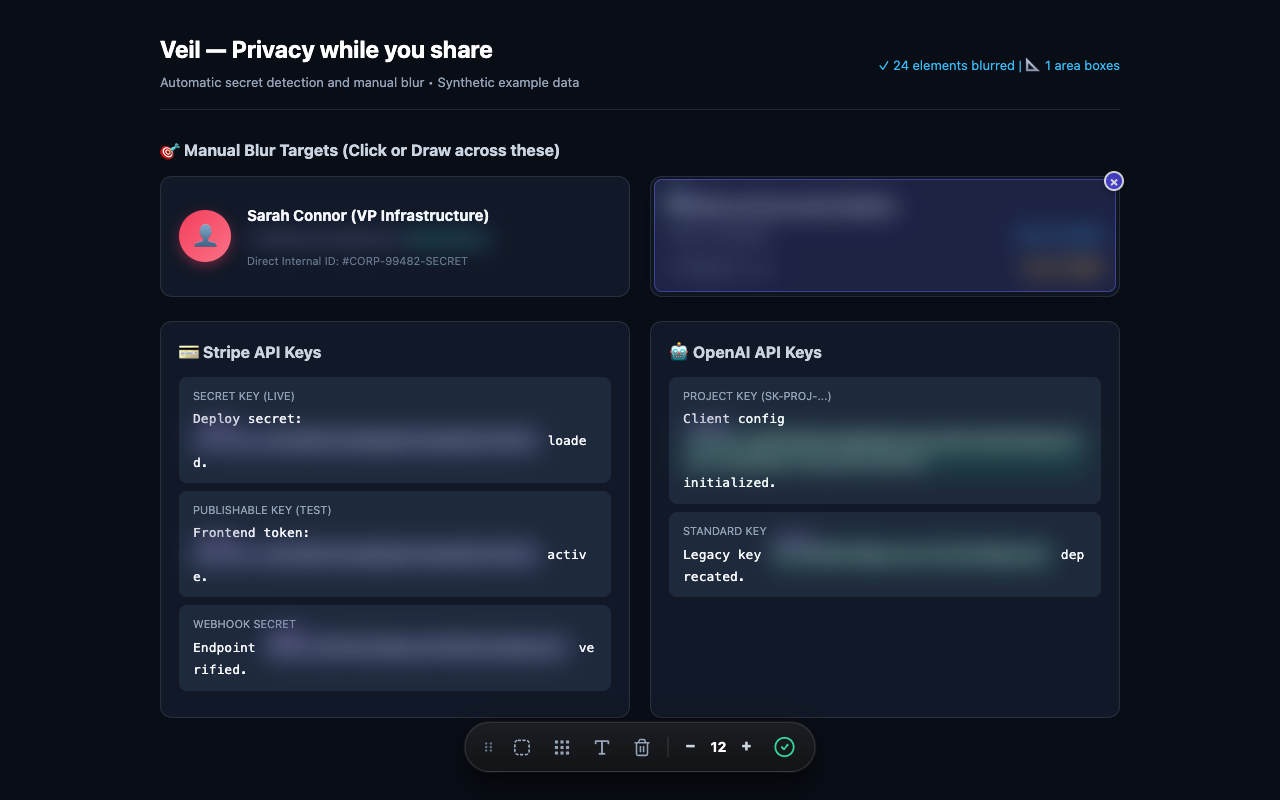
3. Check what your audience will see
Scroll through the page and open any panels you plan to show. Check the masks after navigation or layout changes. Use a test call or recording to review the shared output before presenting real data.
4. Control reveal behavior
Settings let you choose blur strength, blackout, and click or hover reveal. Disable revealing if you might accidentally expose a value during a demo. Avoid Peek All while sharing sensitive content.
Know the limits
Visual masks do not delete information from the source page and automatic detection can miss values. Chrome internal pages and other browser-restricted pages cannot be redacted. Veil for Chrome covers browser webpages; the macOS app is still in development.
For credentials specifically, read how to hide API keys during screen sharing. For installation or missing masks, visit Veil troubleshooting.