How to hide API keys during screen sharing
A browser dashboard can expose credentials when you open a settings panel, copy a token, or scroll into a code sample. Prepare the demo with synthetic credentials where possible, then use local visual masking for the browser content you still need to show.
Use demo credentials first
Prefer a demo account and synthetic example values instead of production secrets. Close unrelated tabs and avoid opening credential-reveal controls during the presentation.
Enable credential detection in Veil
Install Veil for Chrome and enable Master Protection and the relevant API key or secret categories. Open the exact dashboard and panels you plan to present. Detection matches structured patterns, so verify every visible credential instead of assuming all tokens will be caught.
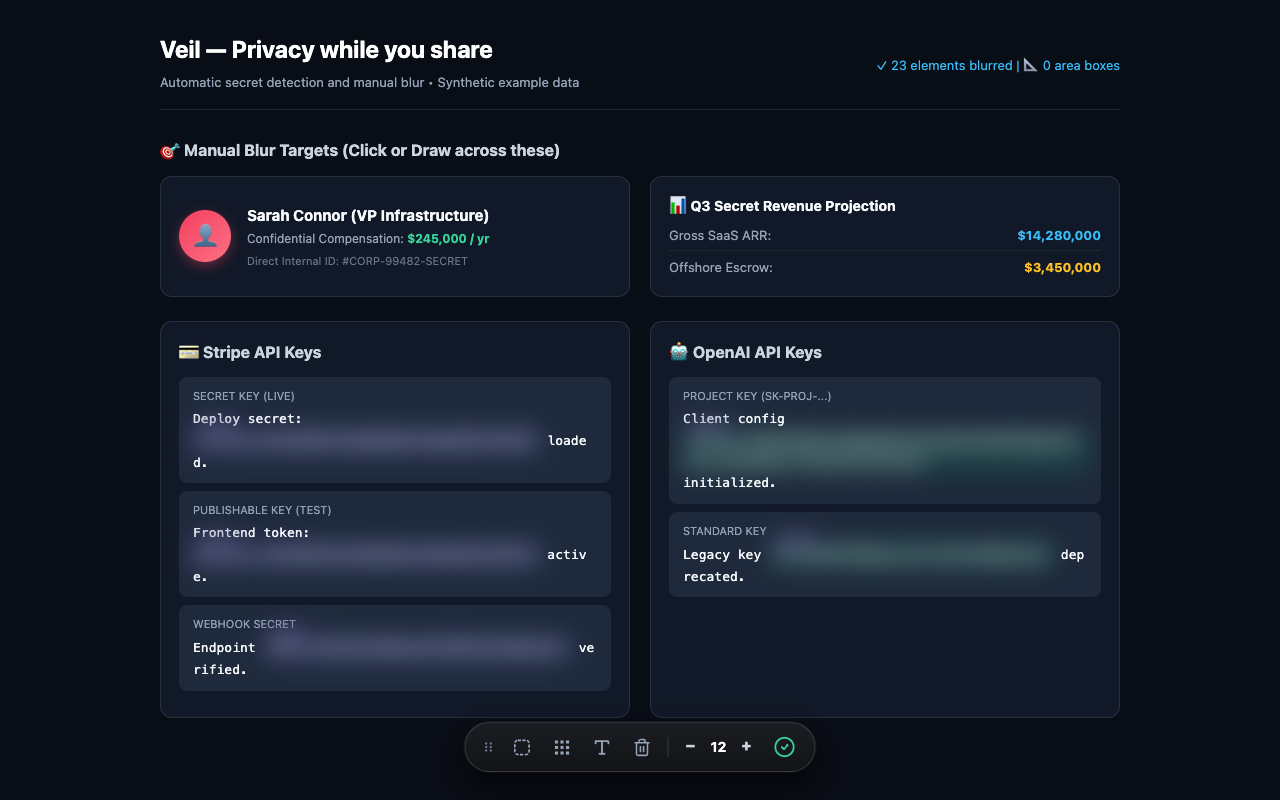
Manually cover unfamiliar token formats
If a credential is missed, select its text or element, or draw an area blur over the token panel. A custom regular expression in Settings can help with a recurring format. Test custom rules with synthetic examples to avoid masking unrelated text or missing the actual format.
Rehearse the shared output
Disable click or hover reveal if it could expose a key accidentally. Avoid Peek All. Navigate through your planned demo, including scrolling and panel changes, then check a test recording. Share only the browser surface you need; the Chrome extension does not mask native terminal or desktop app content.
If a real key appears in the recording
Stop sharing, remove the exposed recording from circulation, and revoke or rotate the credential through its provider. Blurring later does not undo exposure. Veil only changes the visible page; it does not remove secrets from source data.
Read the Chrome text and area blur guide for manual masking steps, or visit Veil support if detection is not working.