Automatically mask emails and API keys.
Automatically detect emails, API keys, card numbers, and other structured sensitive text as pages update.
Veil is a Chrome extension that blurs sensitive information before screen sharing. Mask credentials, emails, and personal details locally during product demos, video calls, and screen recordings.
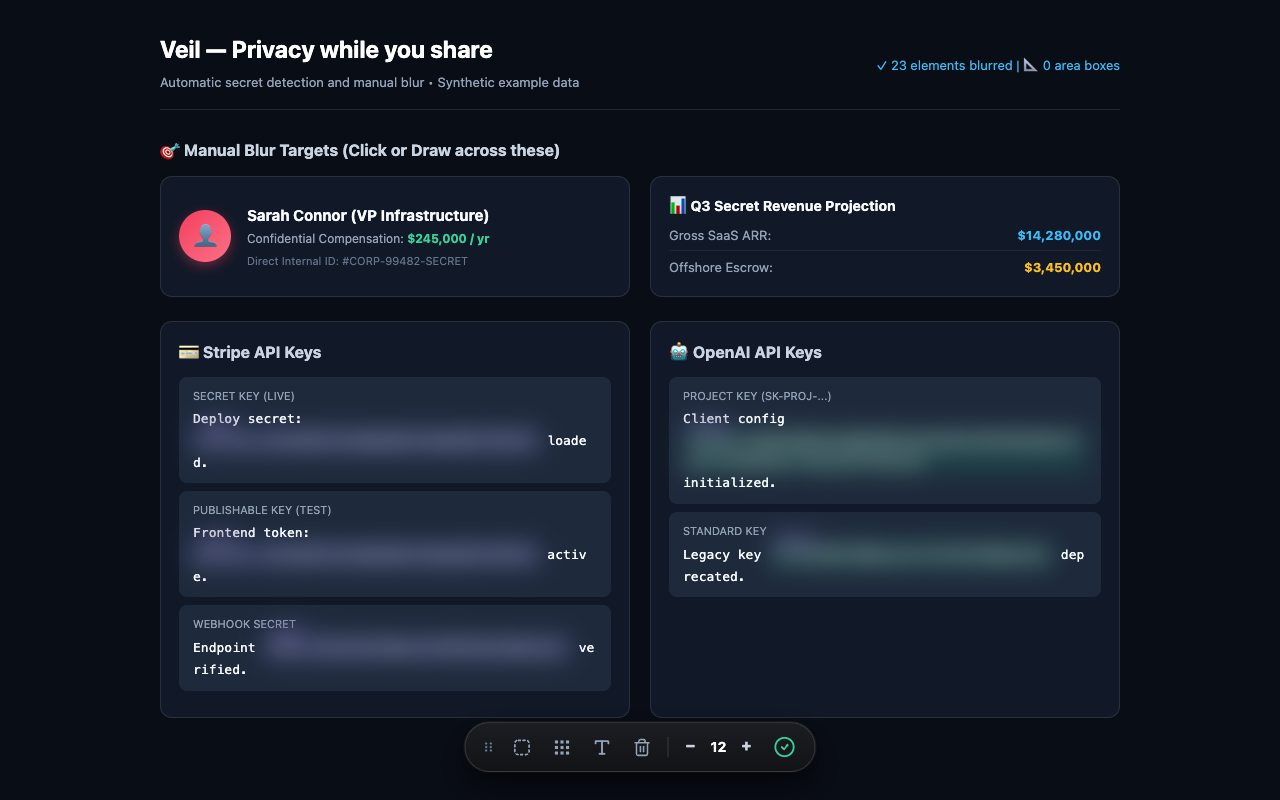
For product demos, support calls, recordings, and everyday browsing.
Automatically detect emails, API keys, card numbers, and other structured sensitive text as pages update.
Pick an element, highlight text, or draw a blur area over anything you want to keep private.
Adjust blur and opacity, choose blackout, set custom patterns, and exclude trusted domains.
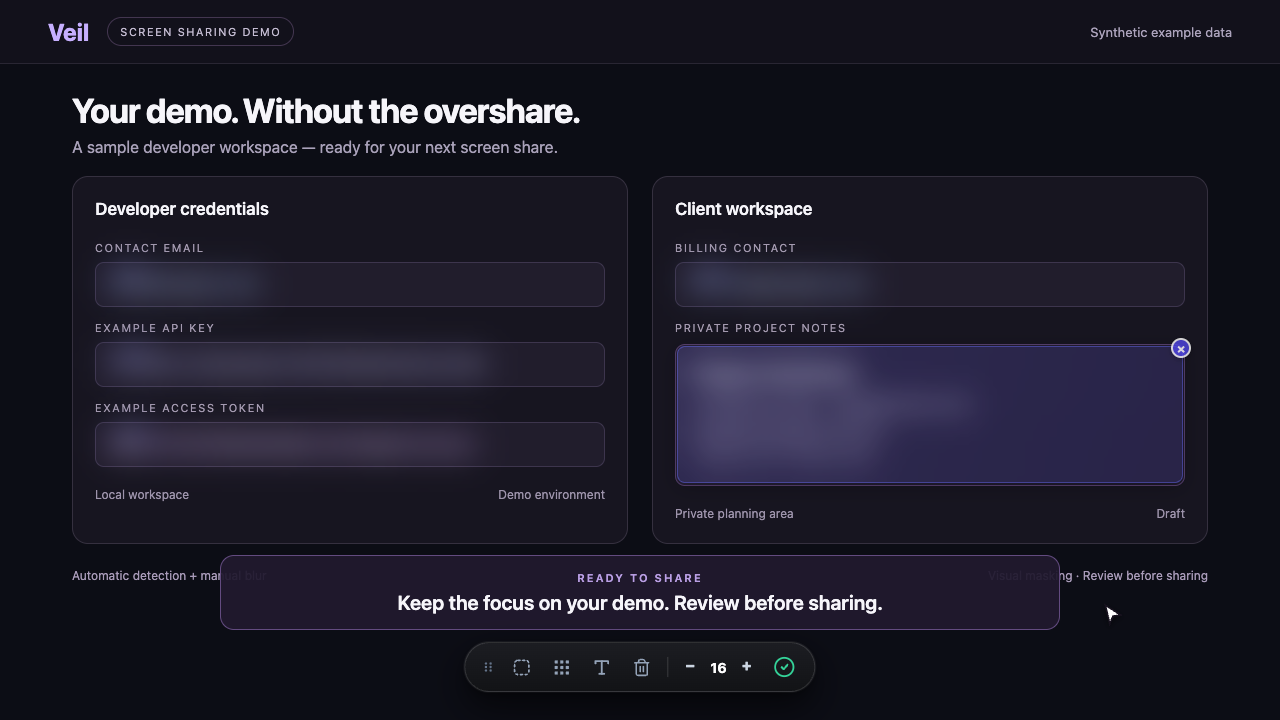
Watch automatic redaction and manual blur in a short, looping demo.
Open Settings from the extension popup to choose what Veil detects, how it hides information, and where protection runs.
Master Protection controls automatic redaction. Enable the sensitivity categories relevant to your work, including emails, API keys, developer tokens, payment details, and other structured personal information.
Add a custom regex rule for an internal ID or token format, give it a name and badge, and test it with synthetic data. Pattern detection can miss values; use manual blur for anything else.
Choose a Blur Filter or Solid Blackout. Set the blur radius from 4 to 24 px and mask opacity from 20% to 100%. The defaults are 12 px and 100% opacity.
Use the floating toolbar’s minus and plus buttons to adjust blur on the page. Review your shared output after changing appearance: lighter settings may leave information recognizable.
Choose Click to Reveal, Hover to Reveal, or Never (Locked) for individual masked values. Locked reveal helps avoid accidental exposure when moving your pointer during a demo.
Peek All in the popup temporarily reveals masked content. Treat it as a separate control and avoid using it while sharing private information.
Show or hide category badges such as EMAIL and STRIPE. Turn on Hide Browser Tab Title to mask the page title, and choose whether the draggable floating toolbar appears by default.
The toolbar puts element, area, and text blur within reach. Title masking affects the title text; review other visible browser details before sharing.
Add domains to Excluded Domains using commas or new lines. Veil disables automatic redaction on matching sites, so only exclude pages you are comfortable showing.
Chrome’s extension site-access permissions also affect where Veil can run. Browser-restricted pages, such as Chrome settings, cannot be redacted.
Use the Live Redaction Sandbox in Settings to try sample or synthetic text and inspect the redacted preview. Avoid entering real credentials just to test a rule.
Preferences are saved in Chrome’s local extension storage. Reset to Defaults restores the standard configuration. For installation help or missing masks, visit Veil support.
Veil processes webpage text locally. Visual masking does not remove information from the original page or guarantee detection of every sensitive value. Check your screen before sharing.
Read the privacy policyVeil processes webpage text locally. There are no analytics, remote scripts, or uploads of your page content.
Preferences and saved manual blur locations stay in Chrome’s local extension storage.
Read the privacy policyVeil for macOS is in development. Explore the planned desktop features and request early access.
Explore Veil for macOSVeil is live on the Chrome Web Store. Add it to Chrome in one click for instant, on-device screen privacy during demos, recordings, and everyday browsing.
Available on Chrome Web Store · Manifest V3 · 100% On-Device · Version 1.0.0
Install Veil directly from the Chrome Web Store with a single click.
Pin Veil to your Chrome toolbar to keep live redaction and controls within easy reach.
Open any webpage. Mask credentials automatically or pick elements and areas to blur.
Install Veil from the Chrome Web Store, open the webpage you plan to share, and enable protection. Use automatic detection for structured sensitive text, or select text, an element, or an area to blur. Review the visible page before starting your call or recording.
No. Veil processes webpage text on your device and stores extension preferences locally in Chrome. It does not upload page content for detection.
Veil provides visual masking. The source page still contains the original information, and detection may miss some values. Check your screen before sharing.
Yes. Use click or hover reveal, or Peek All in the extension popup. You can also disable revealing in Settings.
It works on ordinary websites where extension access is allowed. Chrome internal pages and other browser-restricted pages cannot be redacted. Local file access requires enabling that permission in Chrome.
We are actively building a native macOS app that extends Veil’s on-device redaction to desktop apps like Slack, Zoom, Terminal, and Loom. The Chrome extension is available today for web tools and demos. If you would like early access to the macOS app, join the macOS waitlist.